Upload a PowerPoint file for branded presentations
To use your own branding in Genie Bot exported PowerPoint presentations, create and upload a branded PowerPoint .pptx file. The uploaded file is used as the format for all exported Genie Bot PowerPoint presentations from your organization.
Configure the branded template using your preferred font, color, and size, including 3–4 slides with placeholders. The placeholders are replaced with your session content when you export. The sample branded file for upload is limited to 50 MB.
Procedure
-
Open a blank presentation with your organization's branding.
-
Configure slides with the following placeholders (the placeholders are case sensitive. You can change the font, color, and size to fit your brand):
-
Title slide:
-
#Title (optional)
-
#Presenter-Name
-
#Date
-
- Agenda slide:
- #Agenda
- #Question
-
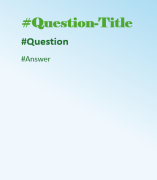
Question & answers slide:
- #Question-Title (Maximum font size 24 pixels.)
-
#Question (Maximum font size 18 pixels.)
-
#Answer (Maximum font size 18 pixels.)
-
Final slide (optional): Add any closing content or branding as needed.
-
-
Save the presentation locally in .pptx format.
-
In the Genie workspace Area within an application window where the user interacts with the program., click Upload
 in the upper right corner to upload the template.
 -
To verify that the template was set up correctly, export a Genie report to PowerPoint, and review the generated file.
-
To revert to the default branding, click the Upload, and from the Upload branded presentation window, click Revert to default.
Example of a sample PowerPoint file: