Genie workspace at a glance
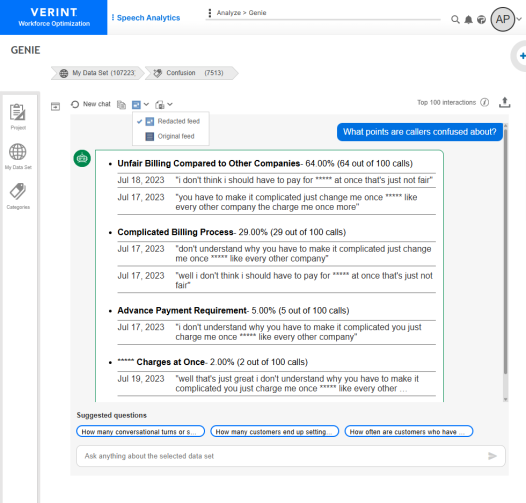
Get to know the Genie workspace Area within an application window where the user interacts with the program. and start chatting with Genie Bot.
|
Workspace options |
Description |
|---|---|
|
Data Set filters |
The Data Set filters on the top of the workspace define the Data Set used for analysis. If you change the Data Set filters, the Genie Bot session is reset, and the questions and answers are cleared. If you return to the previously used Data Set before new interactions are added, the Genie Bot session is restored. |
|
|
Open or close the panel displaying recently asked questions from the current user. |
|
|
Clear the Genie Bot chat area and start a new chat. |
|
|
If redaction is enabled in your organization and you have the Replay without redaction privilege Permissions associated with each role that define the features of the application a user is able to view and the functionality in the application the user can access., you can switch between redaction settings:
If you modify the Data Set, redaction settings return to the default of Redacted feed. |
|
|
Copy the questions and answers of the current chat to your Clipboard. |
|
|
Export the current Genie Bot analysis to a Microsoft PowerPoint file for easy sharing and presentation. If redaction is enabled in your organization and you have the Export without redaction privilege, you can switch between the export settings:
If you do not have the Export without redaction privilege, the exported presentation is always redacted. |
 Upload branded presentation Upload branded presentation |
Upload a sample PowerPoint presentation as a template for branded Genie Bot reports. |
|
|
Send the question to Genie Bot for analysis and response. |
|
|
Clear the question input field. |
|
|
Cancel the question sent to Genie Bot while the response is being processed. The question is added to the Recent Questions list. |
|
Top [number] interactions |
The number of interactions used in the analysis. Up to 100 interactions that best match the filter are included, based on the data set and interaction length. |
|
Genie Bot answers |
Genie Bot answers are divided into topics. Each answer contains up to five (5) topics, with up to three (3) quotes per topic. Clicking a quote loads the interaction in the Player Application that displays recorded interaction data in audio waveform format, which is a color-coded display of the voice energy levels of the employee and customer. The Player also provides metadata about the interaction. on the bottom of the workspace. Your privileges and redaction settings determine the interaction availability and redaction mode of the media played back. See Chat with Genie. |
|
Suggested questions |
The bottom of the chat area contains up to three (3) suggested questions based on the selected data set and the current chat session context. |


