Submit single shift bid request for Multiple Shifts per Day auction (WCAG)
For a Multiple Shifts Per Day auction, create a custom schedule by selecting multiple shifts for each working day you want in the scheduling period. You can also add extra work time to an existing shift Work period in WFM that has a definite length.. This type of auction is helpful when you want to add extra work hours to your already scheduled shifts, and to allow more flexibility in your schedule.
Similar to the Combination of individual shifts auction, you can select one or more bid options, but once the request is approved, if Continuous Bidding is not enabled, you cannot submit any additional bid requests. Before the request is approved (for example, if it's in a Pending state), you can submit a single request multiple times. (If Continuous Bidding is enabled, you can submit a single request multiple times.)
For example, you can select the following:
-
Two shifts on Monday: One from 7:00 AM - 12:00 PM, and one from 2:00 PM - 6:00 PM.
-
Three shifts on Wednesday: One from 7:00 AM - 9:00 AM, one from 11:00 AM - 1:00 PM, and one from 1:00 PM - 3:00 PM.
-
One shift on Sunday from 9:00 AM - 3:00 PM.
-
You do not want to work on Tuesday, Thursday, Friday, and Saturday, so you do not select any shifts on these days.
Procedure
-
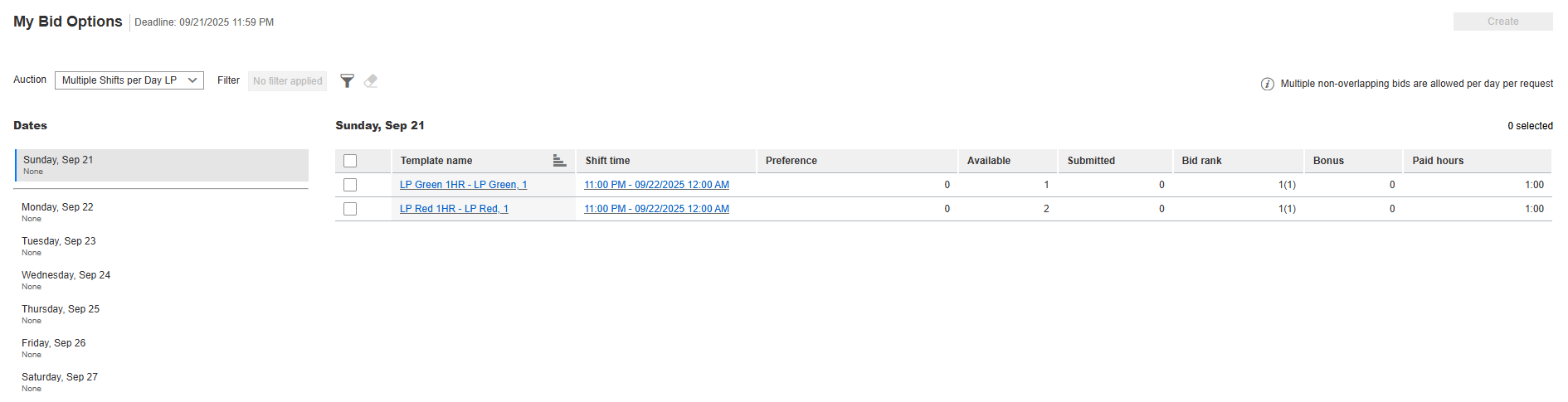
Go to My Home. From My Requests, select My Bid Options.
-
From the Auction drop-down list, select the Multiple Shifts Per Day auction you want.
-
Optional. To limit the bid options displayed in the list, select a filter from the Filter drop-down list.
-
From Dates, select the day for which you want to select one or multiple shifts.
-
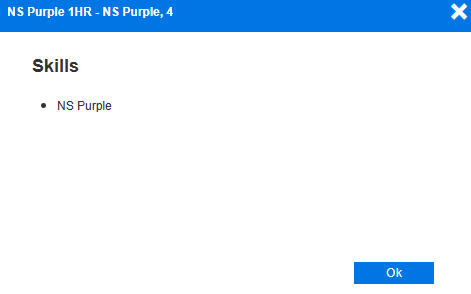
Optional. To view the skills required for a shift, from the Template Name column, select a shift template.
The system displays the skills required for the shift. To return to the My Bid Options screen, select Close.
-
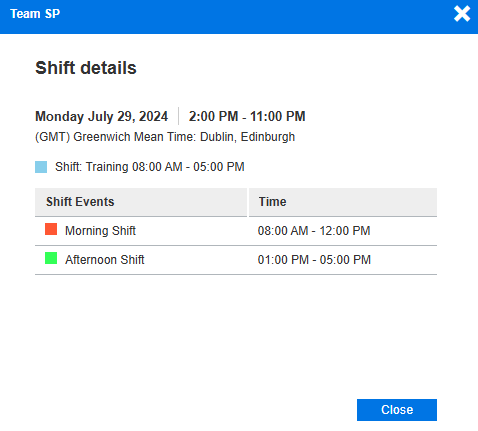
Optional. To view the details of a shift, select the shift from the date column that displays the shift time range.
The system displays the date and time of the shift, and the shift event Time period in WFM when employees are scheduled for specific activities, other than the main shift activity. Shift events can either be productive or unproductive, and can be associated with activities such as Phone, Email, Break and Lunch. details, including activities and time ranges of the events.
-
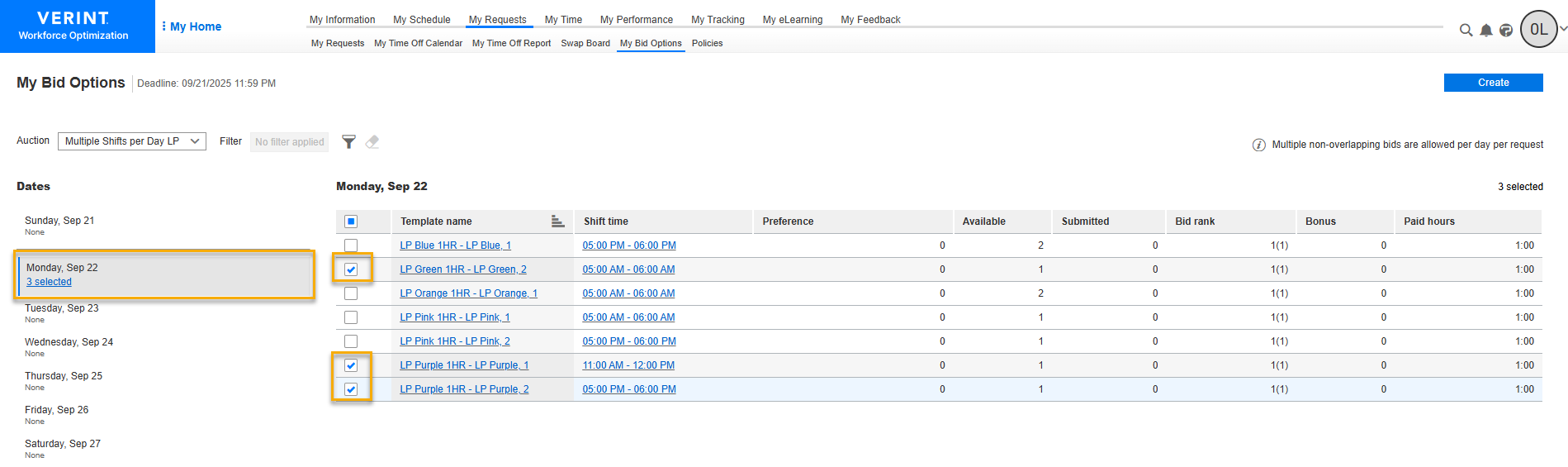
Select the check box of the shifts you want for that specific day.
For a Multiple Shifts Per Day auction, you can select multiple shifts on the same day.
For example, you want to submit a shift bid request for two shifts on Monday, two shifts on Wednesday, and one shift on Sunday. You do not want to work on Tuesday, Thursday, Friday, and Saturday.
-
Select Create.
-
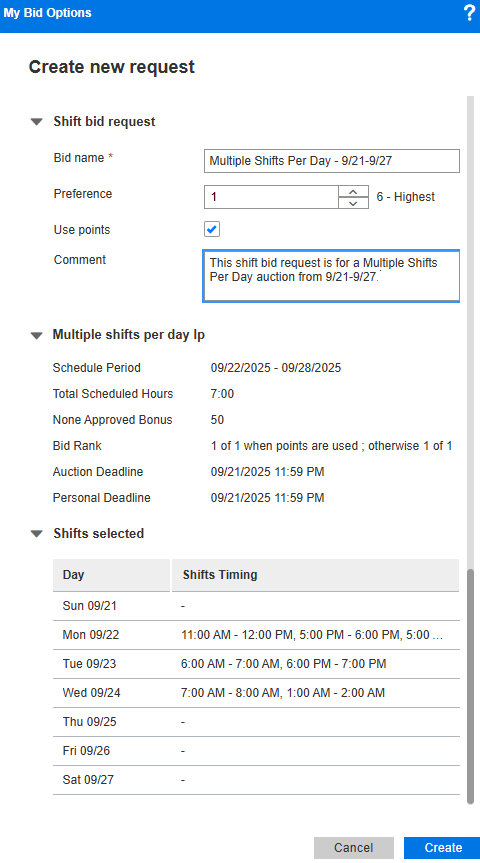
On the Shift Bid Request form, complete the following fields:
-
Bid Name: Name that describes the shift bid request.
-
Preference: Preference or priority of the shift bid request (1 is the highest preference.)
-
Use Points: Optional. When an auction is configured to use bonus points, select this check box to use bonus points for the shift bid request. Using points can affect the rank on the shift bid requests.
-
Comments: Optional field to include comments about the shift bid request.
-
-
View the details about the selected auction, and the shifts you selected on your working days. For non-working days, a hyphen (-) appears.
-
Select Create.
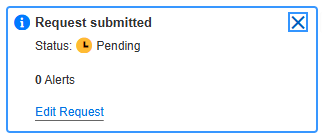
Your request has been submitted, and the status of your request has been updated.
-
To review or edit your request, select Edit Request.
-
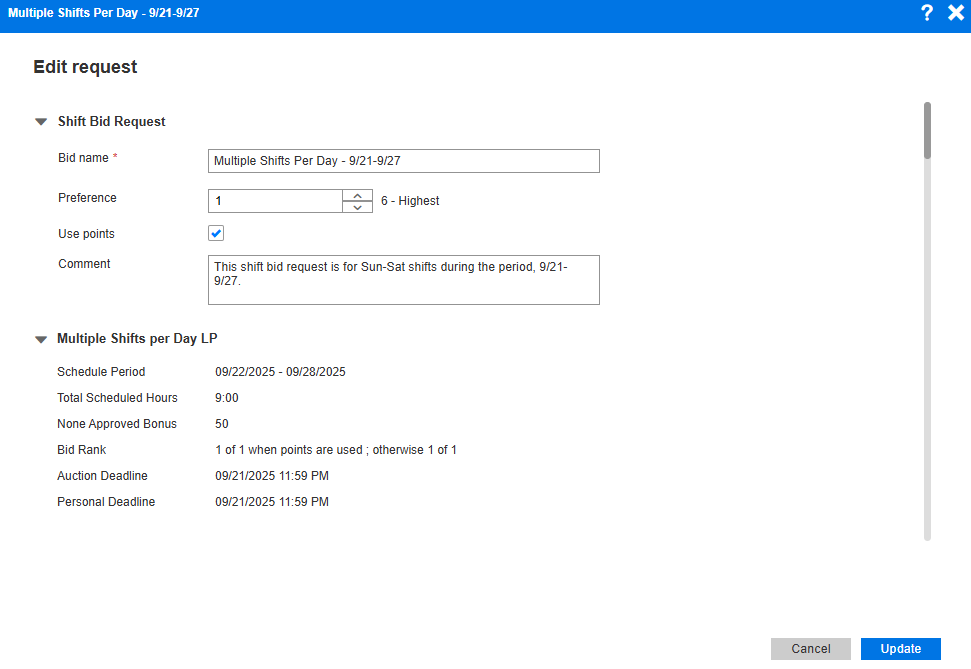
While your request is still in a Pending state, you can edit the fields on the request form. You can also scroll down to view more details about your shifts, including the activities and time ranges of shift events and any alerts.
-
If you changed your shift bid request, select Update. If you did not make any changes, select Cancel.
-
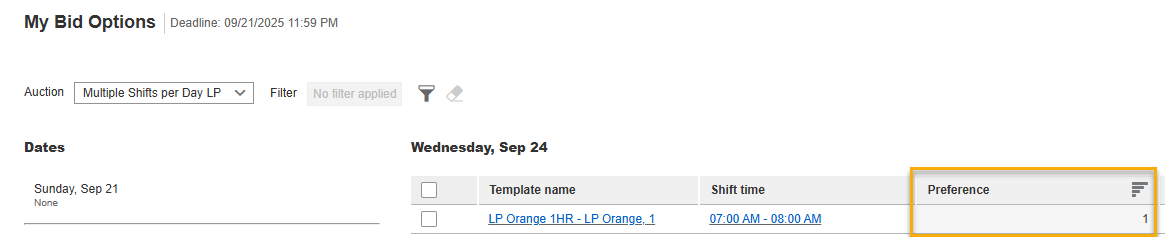
On the My Bid Options page, view the updated preferences saved for the submitted bids.