Create and configure settings for a competency
-
Go to eLearning Product that provides hard and soft skills training, applicable for the entire employee life cycle (before, during, and after the hiring process), and includes training assessment and design tools.. Under Competencies, select Settings.
The left pane refreshes to show the organization hierarchy.
-
From the left pane of the window, select the organization for which you want to create a competency.
The right pane refreshes, showing the list of competencies already created for that organization.
-
At the bottom of the right pane, click Create Competency.
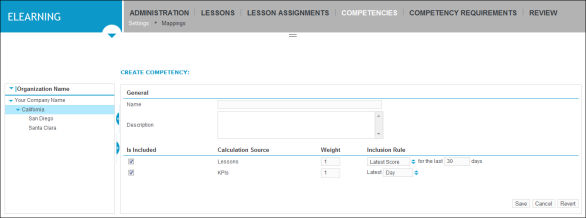
The right pane refreshes to show the Create Competency form.
-
In the General area, type the name and a brief description for the competency in the Name and Description boxes, respectively.
-
Configure the settings for the competency as follows:
-
To select the calculation sources for inclusion in the competency calculation, in the Calculation Source column, check the boxes for Lessons or KPIs.
-
To set the weight for each calculation source score, in the Weight column, type a value in the boxes beside each calculation source.
-
To specify the inclusion rule by which each calculation source score is included in the competency calculation, in the Inclusion Rule column, click the arrow icon
 beside the box for each calculation source and, from the drop-down list, select the inclusion rule that you want to use.
If you are setting the inclusion rule for the Lessons calculation sources, type a value for the number of days within which the rule is effective, such as for the last 30 days, where 30 is the variable.
-
-
Click Save.
The Create Competency form closes, and the right pane refreshes with the new competency included in the list.