Create and Edit Goal Adjustments
Procedure
-
Point to Performance Management. Under Scorecards Product that assists agents, supervisors and all contact center employees to focus on critical aspects of their performance and identify opportunities for improvement., click Goal Adjustments.
-
On the right pane, select the organization for which you want to create or edit a goal adjustment.
The Goal Adjustments page is displayed.
-
Do one of the following:
-
If you are creating a goal adjustment, click the Create Goal Reduction.
-
If you are editing a goal adjustment, select the goal adjustment in the right pane, and click Edit Goal Reduction.
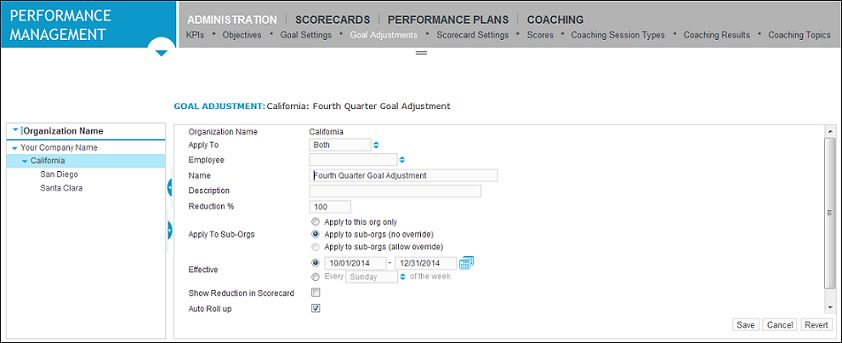
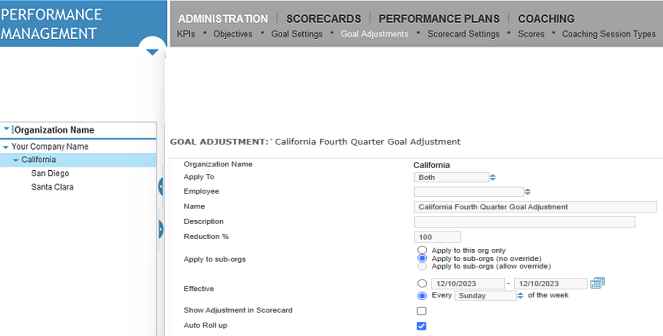
The Goal Adjustment form opens.
-
-
On the form, do the following:
-
Click the arrows beside the Apply To list, and select an option to set whether the goal adjustment applies to an organization, a person, or both.
-
In the Name and Description boxes, type the name and description of the goal adjustment.
-
In the Reduction % text box, type the percentage by which the goal is reduced.
-
If you selected Organization or Both in the Apply To box, select an option under Apply to Sub-Orgs:
-
Apply to this org only (default): Select this option if you want the goal reduction to only apply to this organization and not to its sub-organizations.
-
Apply to sub-orgs (no override): Select this option if you want the goal reduction to apply to the sub-organizations. If the sub-organizations have custom settings, they are retained.
-
-
In the Effective area, do one of the following:
-
Select the date range option, click the calendar icon beside the text boxes, and select the start and end dates for the goal adjustment.
-
Select the Every [week day] of the week option. Click inside the drop-down list box, and select a week day such as Sunday.
-
If you want to show the goal adjustment in the scorecard, select the Show in Scorecard box.
-
If appropriate, select the Auto Roll Up check box. Selecting the Auto Roll Up check box causes the reduction percentage to influence higher periodicities (for example, reducing the weekly goal, the monthly goal).
-
-
When you are finished, click Save.