Work with Goal Adjustments/Reductions
To view goal adjustments, point to Performance Management. Under Scorecards Product that assists agents, supervisors and all contact center employees to focus on critical aspects of their performance and identify opportunities for improvement., click Goal Adjustments, and select the appropriate organization.
The Goal Adjustments page opens, displaying the goal adjustments and a filter feature and a date range selector.
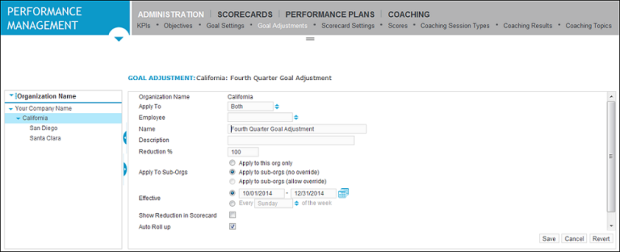
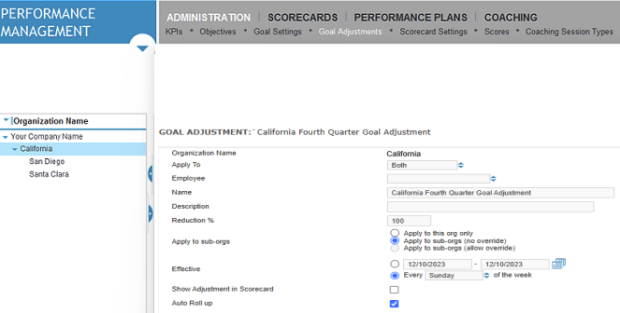
These are the descriptions of the Goal Adjustment Screen’s columns:
-
Name
-
Description
-
Organization
-
Date (the date the goal adjustment is in effect, for example, Every Sunday)
-
Apply To (whether the adjustment applies to persons, organizations, or both)
-
Reduction % (the goal reduction percent)
-
Show in Scorecard (whether the adjustment should be shown in the Scorecard)
-
Apply to Sub-Orgs (whether the adjustment should be applied to Sub orgs).
You can also filter the goal adjustment list by using the organization filter and date range selector:
-
To use the organization filter, click the arrows beside the Filter by list at the top of the Goal Adjustments screen. Select one of the options in the list. You can filter the list by a specific organization (Organization level only), by an organization and its employees (Organization and Employee), or by a specific employee.
-
To use the date range selector, click the calendar icons at the top, right corner of the Goal Adjustments page. Select the start date and end date that you want to view the goal adjustment.